

I haven’t written a line of code in six months.
I spent over two decades writing code — Python, C#, TypeScript, SQL. Wherever the job needed me, I figured it out. Now I spend my time reviewing code I didn’t write and shipping features I didn’t build, thanks to Claude Code.
Claude Code is easy to get started with. Sign in, open a folder, start chatting. But after a few sessions, you hit some walls. There’s no memory between chats, no structure for complex builds, and agents that overwrite each other’s work. Here’s the stack that solved all of that for me — not just installation, but the three tools that made Claude Code production-grade.
What Is Claude Code?#
Let’s start at the beginning. Claude Code is a tool from Anthropic, released in early 2025, that turns instructions into working code. Sounds magical, I know, but that’s what it does. If you’re skeptical, I understand. So was I. It really sounds too good to be true — but that’s genuinely what it does.
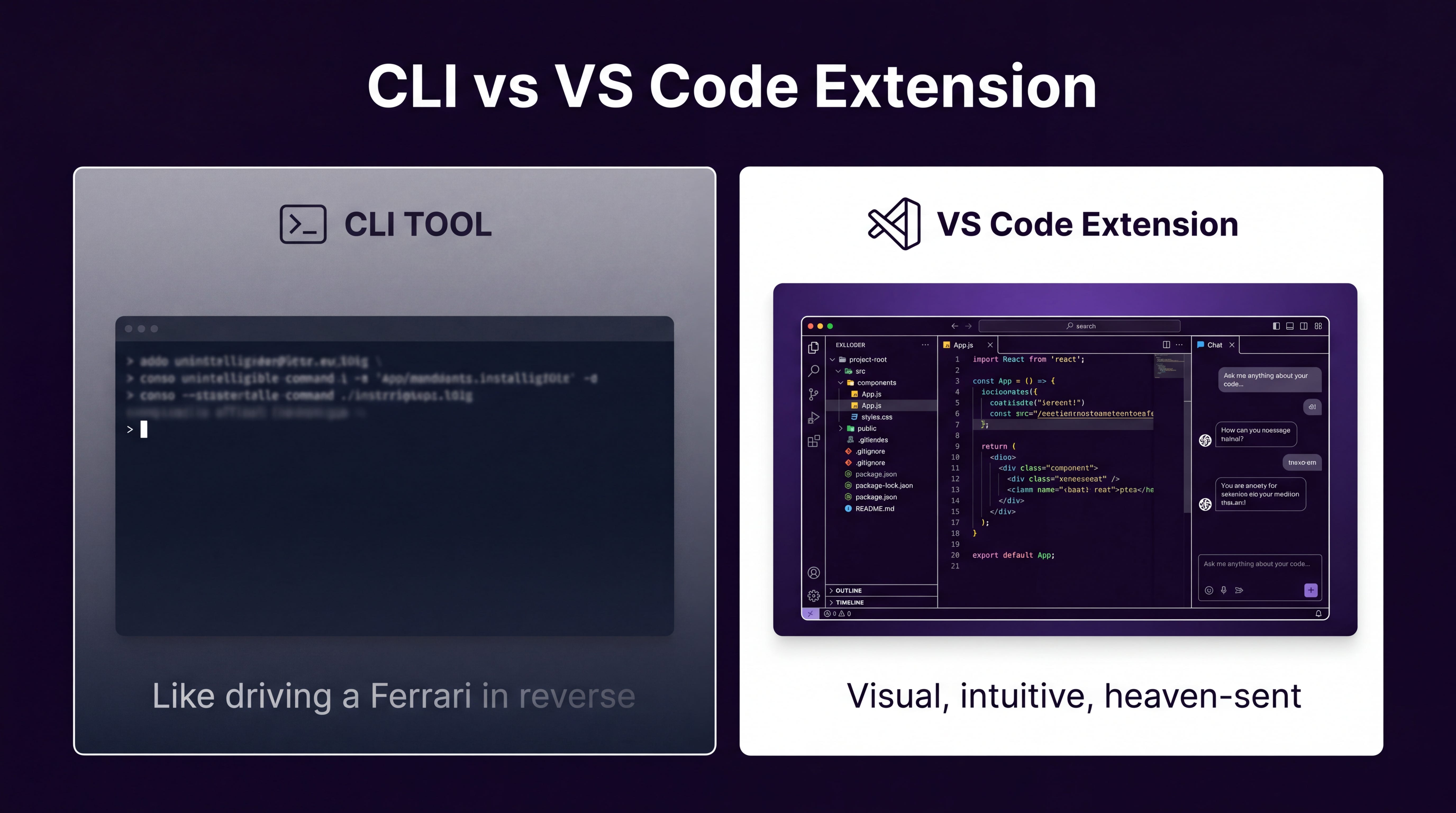
When Claude first launched as a CLI tool, I downloaded it, opened my terminal, and stared at the blinking cursor. I thought, “Yeah, I’m an engineer. I’ve spent decades in terminals.” But something about writing code in a terminal felt like driving a Ferrari in reverse. Technically possible, but why would you?
For some, using the CLI is like peanut butter and jelly. They just go together. But that’s not me.
Then Anthropic released the Visual Studio Code extension for Claude Code. Seriously, it felt heaven-sent. Suddenly, it just clicked — visual, intuitive. This is how AI coding should be.
My Basic Setup#
My setup is pretty straightforward:
Install the Claude Code extension for Visual Studio Code
Sign in (API key or subscription — I use a subscription)
Open your project folder
Start telling Claude Code what you want
That’s it. Claude Code is ready to go.
Twelve months ago, I would have never dreamed of not writing code. But since November 2025, I’ve spent my days designing AI features, reviewing code, and improving my AI development cycle — which changes every time a new frontier model drops. It constantly needs to be improved.
Claude Code works great out of the box, but there are a few tools that act as force multipliers. Let me walk you through each one.
Tool 1: Superpowers — A Structured Process for Your Agent#
The first tool isn’t really a tool. It’s more of a set of skills packaged together.
A skill is just a set of instructions for Claude to follow when performing specific actions. At the end of the day, it’s a markdown file that you give Claude Code, and it follows those instructions when it meets a certain task trigger.
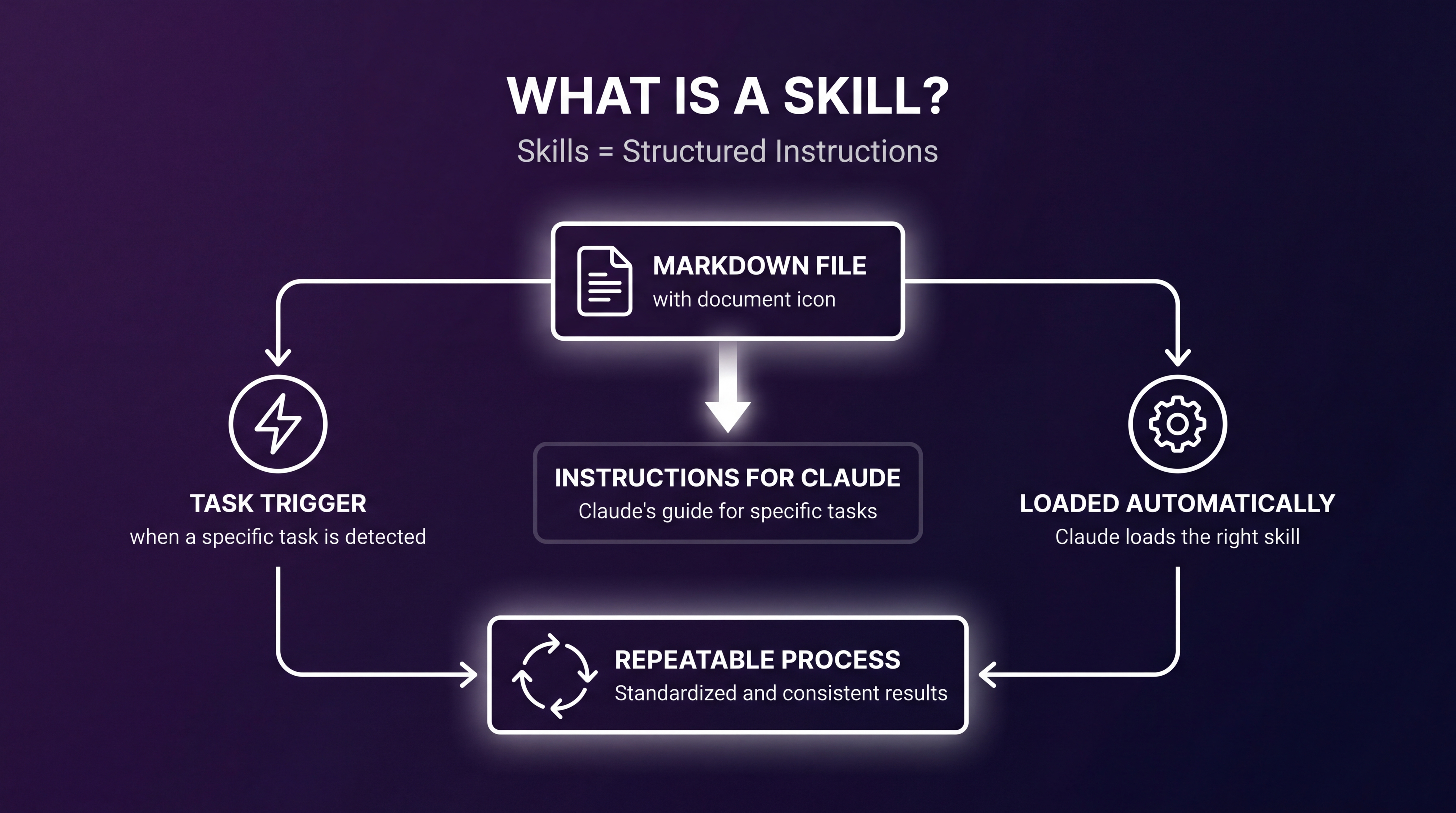
The one I use is called Superpowers. Here’s how it works: when Claude identifies a certain task, it loads the required skills, then follows the instructions in that skill. This gives Claude a repeatable way to solve the same problem.
A Practical Example#
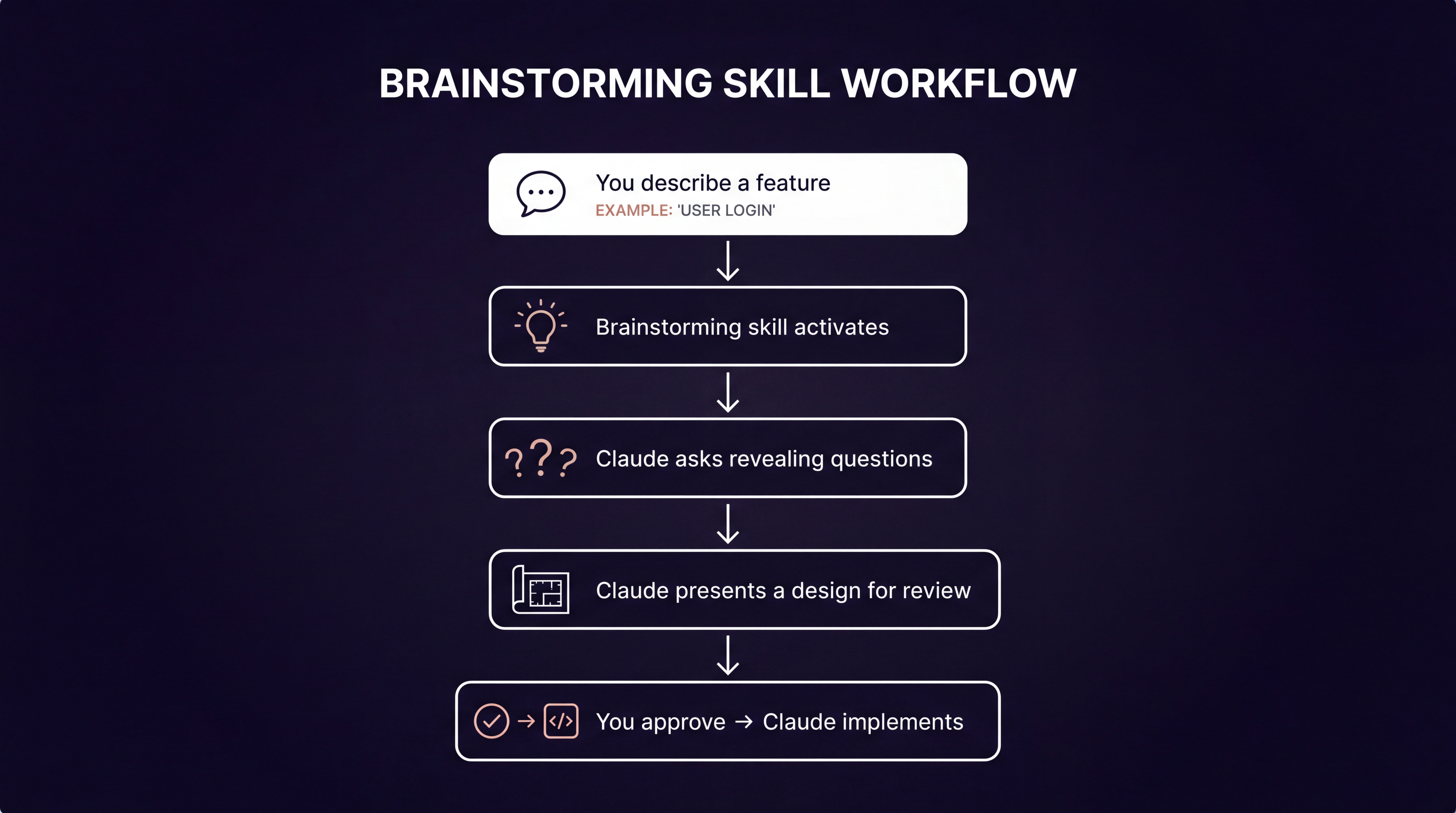
Say you tell Claude, “I want to create a feature called user login.” There’s a skill called brainstorming that prompts Claude to ask revealing questions about achieving the outcome. Once you’ve answered the questions, Claude puts together a design and presents it for your review. If you agree, it implements the design.
What this gives you:
A coding roadmap for you and your agent to follow
A repeatable process you can improve over time
Structured thinking before any code gets written
The most important piece is this: if it’s a process, you can improve upon it.
Installing Superpowers#
Installation is simple. In your Claude Code terminal, type /plugin, go to the marketplace, and install Superpowers. The Superpowers GitHub repo has full installation instructions — grab the first line to install the marketplace, then the second line to install the skills themselves.
Tool 2: Serena — Memory for Your Coding Agent#
The second tool is called Serena, and let me tell you why you need it.
Picture this. It’s late. You’ve spent hours building a complex feature. The auth is working. Database schema is solid. You’re wiring up the API. But it’s been a long day, so you call it a night.
The next morning, you open a new chat and say, “Let’s continue with the API changes.”
Claude responds: “Huh? I don’t see any API changes or endpoints. Would you like me to help you set those up?”
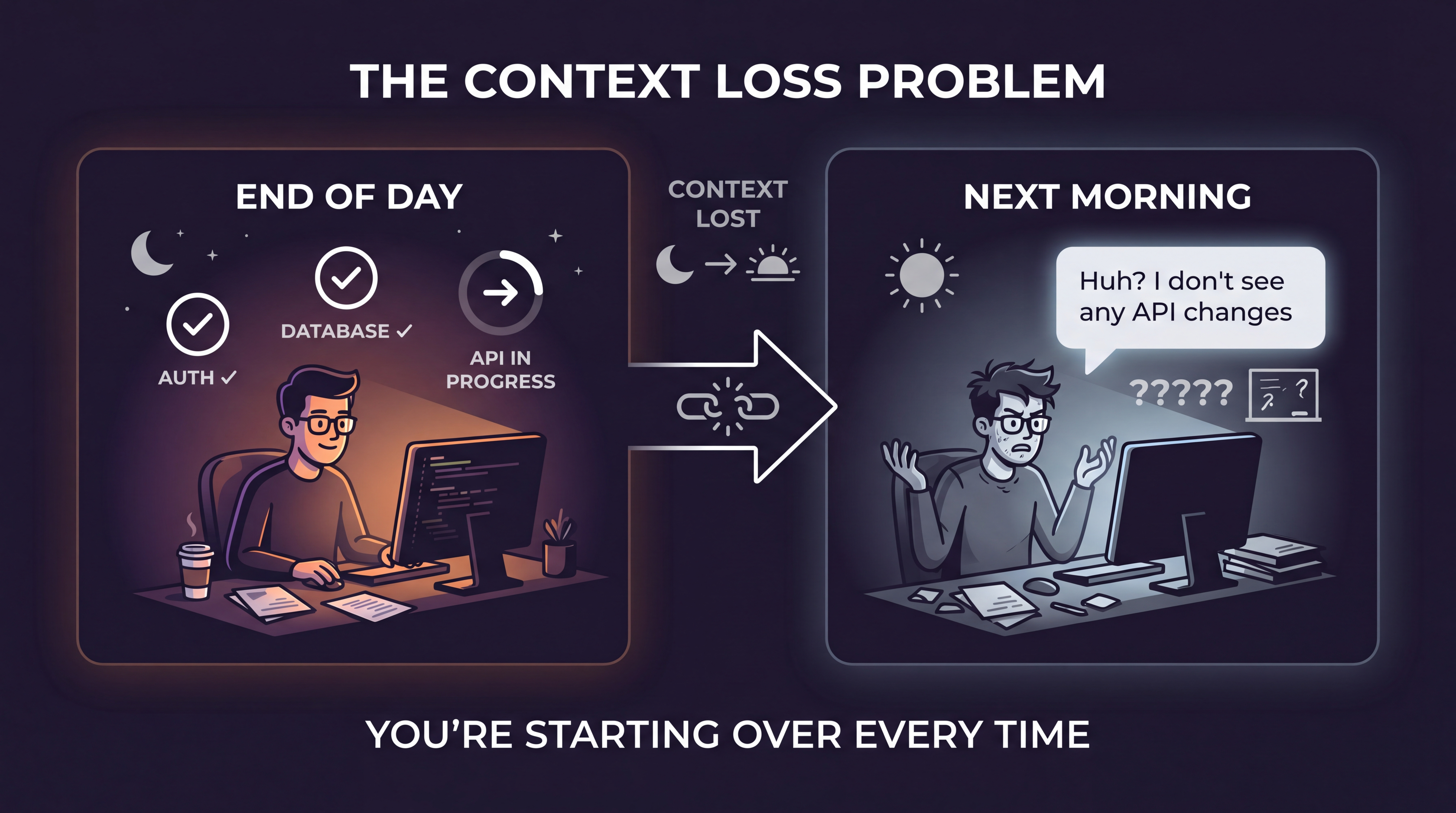
Your context is gone. Windows updated overnight. You closed the window. You hit the conversational limit. Does it really matter? You’re starting over. You have to re-explain the architecture, the decisions, the gotchas you discovered together.
This happens every time you start fresh — until you add Serena.
How Serena Works#
Serena doesn’t load your old conversations verbatim. That would be impossible. What it does is distill previous sessions into a summary — think of it as leaving breadcrumbs behind.
When you start a new chat, Serena gives Claude the context:
Here’s what we built
Here’s how the auth layer works
Here’s why we chose this database schema
Claude picks up where you left off instead of starting from zero. This has been invaluable for long-running projects. Some builds have multiple phases, different deliverables. As the app grows, it gets harder to explain how everything fits together. Serena handles that for you.
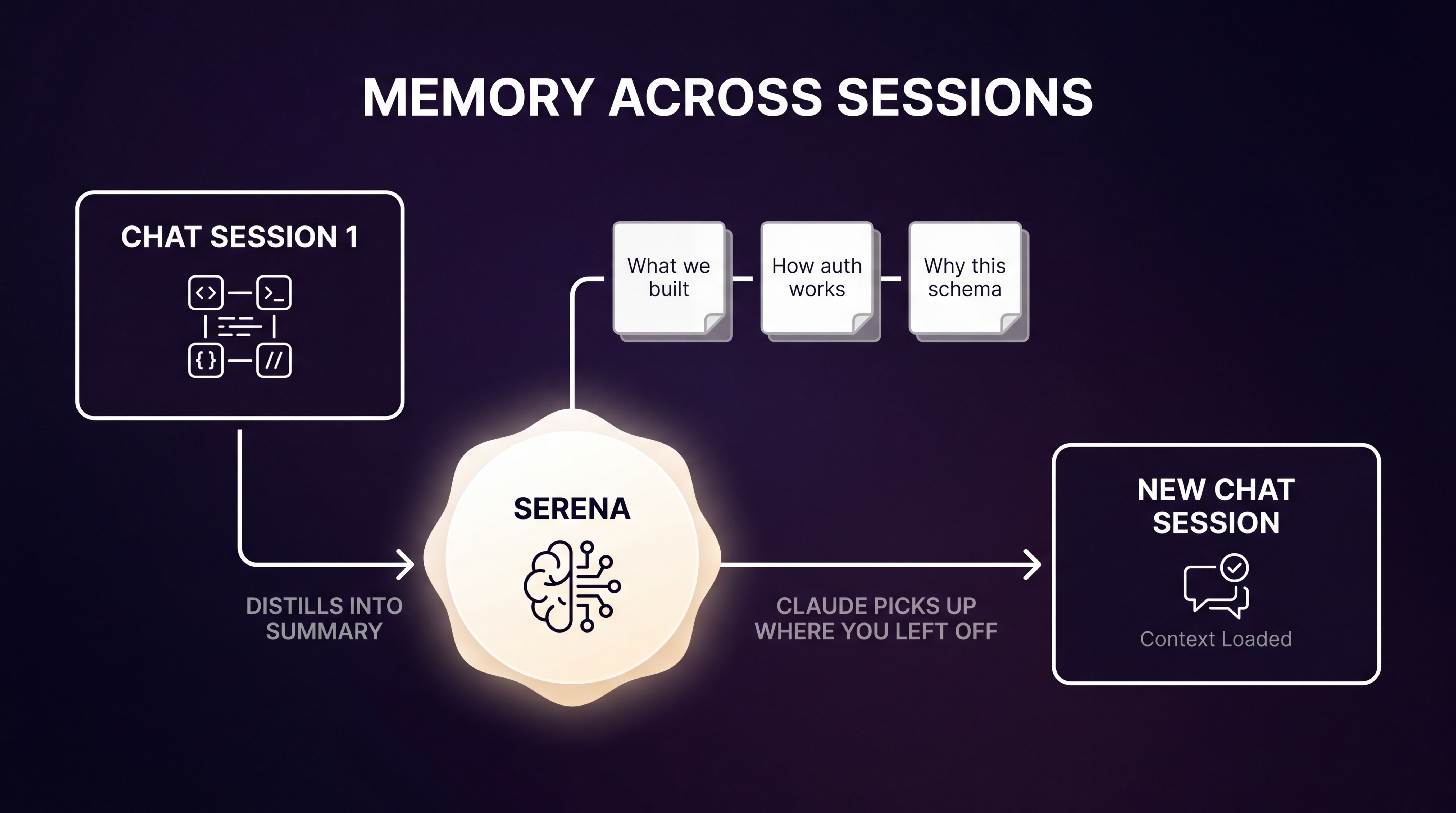
It’s like memory for your coding agent.
You can find Serena on its GitHub page, which has instructions, diagrams, and plugins for different coding agents. But here’s the fun part — you don’t even need to follow the GitHub instructions manually. Just ask Claude to install it for you. I asked Claude to install Serena locally in an mcp.json file, and it started right up.
Tool 3: Git Worktrees — Isolation for Parallel Agents#
The third tool isn’t a plugin. It isn’t even an AI tool. It’s a Git feature called worktrees, and it’s become a critical part of my workflow.
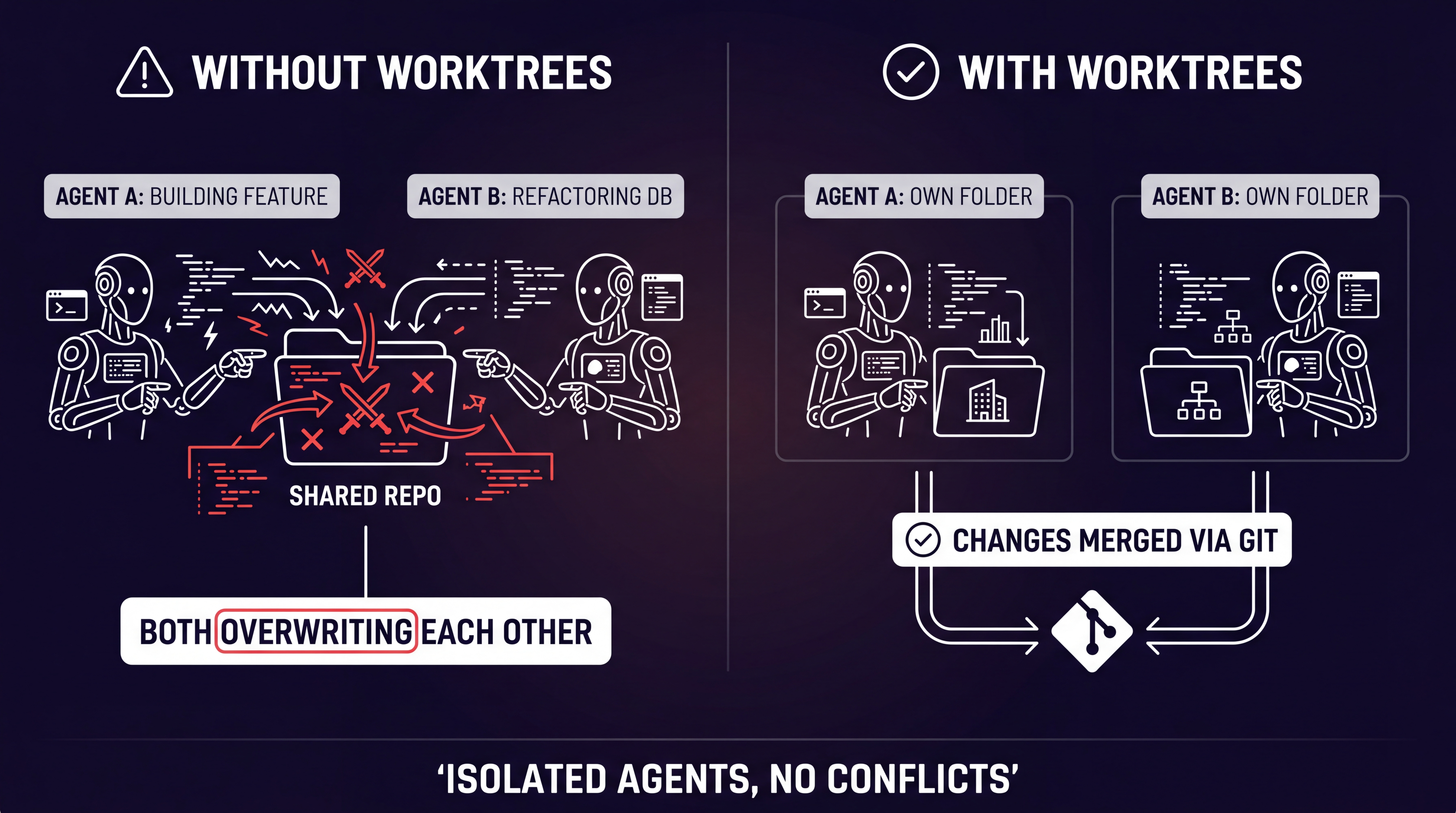
I learned about worktrees the hard way. I had two Claude instances running — one building an end-to-end feature, the other refactoring the database. They shouldn’t have crossed paths, but they did. They started overwriting each other’s work. Each agent checked in half-implemented versions of the code and claimed confidently that they were done. It was a mess.
How Worktrees Solve This#
Worktrees effectively make copies of the repo. Each agent gets its own folder to work in, so when files change, they change in isolation from the other agent.
“But Chuck, how are these changes merged?”
Good question. You check your code into Git. Worktrees are a Git concept, and you use Git’s standard merge process. It just works.
Setting Up Worktrees in Your Project#
I include worktrees in my workflow two ways:
Through Superpowers — it already has instructions to use worktrees
Through a CLAUDE.md file — as a backup in case the AI ignores the Superpowers instructions
If you’re not familiar with CLAUDE.md, it’s a file that’s loaded on every context. It gives Claude instructions about architecture, coding standards, patterns, deployment targets, lessons learned — anything Claude needs to know every time it starts a new session.
I simply asked Claude to create a CLAUDE.md file with a requirement that all work be done in worktrees. The result:
“All work must be done in Git worktrees. Use isolated worktrees for every task to avoid polluting the main working tree.” That’s it. Even if you don’t use Superpowers, this is how you can get Claude Code to use worktrees in your project.
Seeing It All in Action#
Let me show you how these tools work together.
I started by asking Claude to create a basic to-do app using React. Files started appearing on the left side of VS Code, and within minutes, the dev server was running. A fully functional to-do app — just like that.
But here’s where it gets interesting. Let’s run three Claude instances at the same time:
Tab 1: “Can you explore adding a database? Give me options.” Tab 2: “Can you add light and dark mode?” Tab 3: “What will it take to set up CI in GitHub?”
All three agents work simultaneously in their own worktrees. When an agent finishes, a small dot appears on its tab. I click over, review the work, approve or adjust, check the code in, and move on to the next completed tab.
This is how I use Claude Code day to day — kicking off parallel tasks, rotating between tabs, reviewing results, and shipping. It’s a fundamentally different way of working.
Another Real-World Example#
I recently needed to install Ubuntu on a server. Once I got the hardware set up, I gave Claude Code shell access and walked away. A few years ago, this would have meant searching Google for tutorials and spending hours installing software. When I returned thirty minutes later, my server and website were up and running.
Bonus Tip: Talk to Claude with Your Voice#
Here’s a productivity tip that’s easy to overlook: use voice-to-text to talk to Claude.
I use an app called Wisperflow. You download it, install it, connect it to your mic, and you’re good to go. It costs around $200 per year, so it’s not free.
If you’re looking for a cheaper alternative, check out Superwhisper. With Superwhisper, you bring your own AI API keys — the app itself costs around $5 per month, and you pay for your own API usage.
Speaking your instructions instead of typing them is a small change that makes a surprisingly big difference in your flow.
Final Thoughts#
A few years ago, I thought AI coding wasn’t quite there. It’s matured a lot in the last year.
Here’s the stack that made it work for me:
Claude Code (VS Code extension) — the foundation
Superpowers — structured, repeatable processes via skills
Serena — persistent memory across sessions
Git Worktrees — safe parallel agent execution
Voice-to-text — faster input, better flow
I haven’t written a line of code in six months. It still feels weird to say out loud that I don’t code anymore, but that’s where I’m at. The role has shifted from writing code to designing, reviewing, and orchestrating code.
What does your setup look like? I’m always open to finding new ways to do things. Drop a comment, find me on Twitter/X, or subscribe to my newsletter for more deep dives on AI-powered development.
Stay curious and keep learning.